I’m not a developer. I don’t know how to write code from scratch. I can understand HTML and CSS when I see them, and I can edit small things with the help of AI, but I’m not someone who builds full websites by hand.
For years, Elementor was my go-to. It takes time, but not as much time as manual coding. I’ve built many websites from scratch using it. Because I know design, I could create clean and modern layouts even without writing code.
Things changed with AI.
Not in the “AI builds my whole website” way. My problem was different, I still needed WordPress. I need it for SEO, blogging, publishing, and long-term maintenance. So even when AI could build beautiful landing pages in React or HTML, it wasn’t useful for me unless I could use that inside WordPress.
Now that’s finally possible.
This is how I build complete WordPress websites using AI. from design to development without writing any code myself.
Step 1 – Designing the Website (Using Gemini 3 Thinking)
For design, I rely on Gemini 3 Thinking.
This model is extremely good at creating modern, clean layouts.
I give clear context about what the site is for, what pages are needed, color style, spacing, features everything.
Gemini then designs full components and sections, and it also generates the React code.
Some recent sites I built:
- keep.domains
- rankth
- even this website
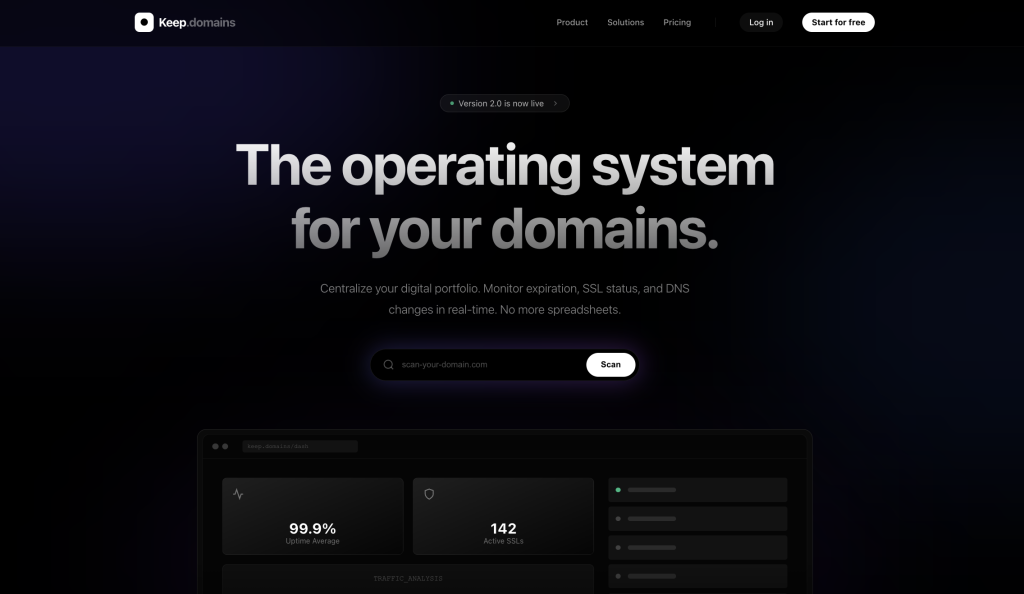
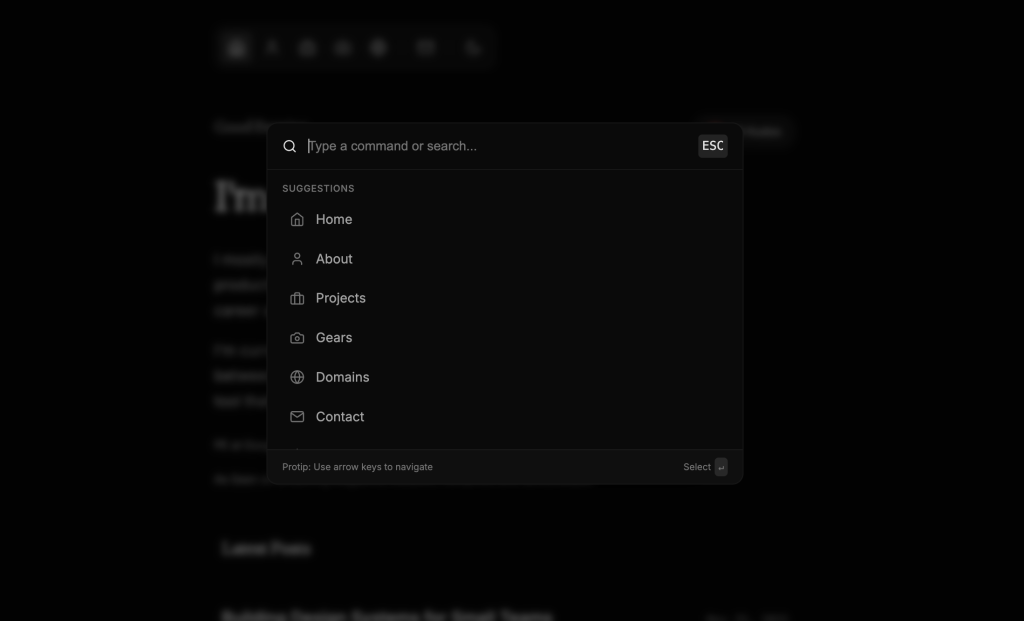
I also ask Gemini for extra features like:
- dark/light mode
- command palette
- smooth animations
- richer UI components
It simply writes the React code and gives it to me.
Step 2 – Set Up a Local WordPress Using WordPress Studio
Next, I install WordPress Studio:
https://developer.wordpress.com/studio/
This lets me run WordPress locally on my laptop.
Benefits:
- live preview
- normal wp-admin access
- direct access to WordPress files
- fast development (because everything is local)
This becomes my safe “testing version” of the website. to understand how to use WordPress studio, check this:
Step 3 – Add AI-Generated Code Using Cursor or Antigravity
Now I connect the design to WordPress.
I open the local WordPress folder inside Cursor or Antigravity.
I personally prefer Antigravity now.
Inside Antigravity, I paste the React code from Gemini and simply say:
“Add this page to my WordPress website. Make sure all the content and images are included, and that the page is fully added without missing anything”
Antigravity takes care of everything:
- creating theme files
- integrating React
- writing the PHP files
- building a new custom WordPress theme
When the coding is done, I just go to:
Appearance → Themes → Activate theme
And the website is live locally.
If I need to add more pages or features, I do it again inside Antigravity.
(You can also build it directly in Antigravity since it has the Gemini 3 model, but the token limit gets in the way. That’s why I handled the full build in Gemini and then finished the rest in Antigravity.)
Step 4 — Move the Local Site to the Live Website
Final step: migrate the local site to the main domain. watch this video to understand how to do this:
The One Big Con
You cannot edit this website from the WordPress backend like Elementor.
All edits must be done:
- in Antigravity
or - manually in theme files
This is the only drawback.
Final Thoughts
AI didn’t replace WordPress for me.
AI finally made WordPress easier.
I can now design modern websites in minutes using Gemini, and integrate everything into WordPress without manually coding anything.
AI handles the development.
WordPress handles the publishing, SEO, and maintenance.
A perfect partnership.